Mastering Digital Art with Photoshop Giant Texture Brushes
In the evolving landscape of digital design, texture is often the differentiator between a flat, sterile image and a piece of art that feels tangible and alive. For designers, illustrators, and photo manipulators, the quest for authentic surface details can be time-consuming. This is where specialized tools like Photoshop Giant Texture Brushes become indispensable. Rather than spending hours manually painting grain, noise, or organic patterns, creators can leverage pre-engineered brush sets to accelerate their workflow while maintaining high artistic standards.
This article explores the utility, installation, and practical application of a specific set of 50 high-resolution texture brushes. We will delve into how these tools function, who benefits most from them, and how to integrate them seamlessly into your creative process.
Understanding the Toolset
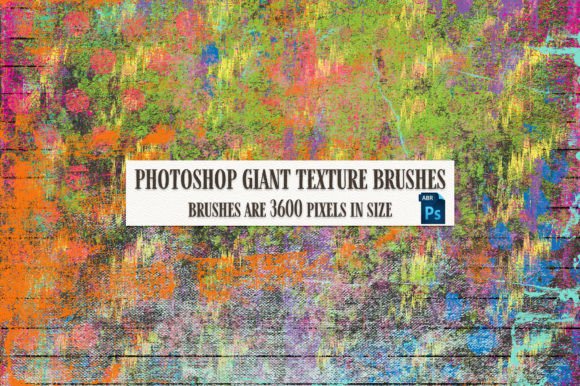
The core of this resource is a single .abr file containing 50 distinct brushes. It is crucial to understand that these are not generic stamps; they are engineered specifically for Adobe Photoshop. The term "Giant" refers to the resolution and scale capability of these brushes, allowing them to cover large canvas areas without losing definition or becoming pixelated. This makes them particularly suitable for high-resolution print work, large-format digital displays, and detailed concept art.
Alongside the primary brush file, the package includes two bonus pre-made backgrounds. These serve as excellent reference points, demonstrating the potential of the brushes when layered and manipulated by an experienced user. By studying these previews, users can reverse-engineer the techniques used to create complex textures from simple brush strokes.
Technical Prerequisites and Compatibility
Before purchasing or downloading any brush set, it is vital to assess technical compatibility. These brushes will only work in Photoshop. They are not compatible with Procreate, Clip Studio Paint, GIMP, or other raster graphics editors unless those programs have specific importers for Adobe brush formats, which often results in lost fidelity. Furthermore, you must possess the foundational knowledge of how to use a Photoshop brush .abr file and how to install it into Photoshop. If you are unfamiliar with loading external assets into the Creative Cloud ecosystem, there is a learning curve involved before you can utilize the tool effectively.
Installation and Setup Guide
For those new to custom brush installation, the process is straightforward but requires precision. Follow these steps to ensure your Photoshop Giant Texture Brushes are ready for use:
- Download and Extract: Ensure the
.abrfile is saved to an accessible location on your hard drive, such as your Documents folder or a dedicated Design Assets directory. - Open Photoshop: Launch Adobe Photoshop. Navigate to the Window menu and select Brushes to open the Brush panel.
- Import the File: Click the hamburger menu (three horizontal lines) in the top-right corner of the Brush panel. Select Import Brushes... from the dropdown list.
- Locate and Load: Navigate to the folder where you saved the
.abrfile, select it, and click Load. - Verification: Scroll to the bottom of your brush list. You should now see the 50 new texture brushes available for selection.
Once installed, it is advisable to organize these brushes into a specific group within your panel to keep your workspace clutter-free. This organization becomes increasingly important as your library of custom tools grows.
Who Benefits from Giant Texture Brushes?
The versatility of this 50-brush set means it appeals to a broad spectrum of creatives. Understanding your role within this ecosystem helps determine the value proposition.
- Digital Painters and Illustrators: Artists looking to add depth to characters or environments can use these textures to simulate canvas tooth, paper grain, or weathered surfaces.
- Photo Manipulators: Professionals who composite multiple images often struggle with making elements look like they belong in the same environment. Applying a unified texture overlay using these brushes can glue disparate elements together visually.
- Graphic Designers: For branding projects that require a rustic, vintage, or organic feel, these brushes provide quick ways to distress logos or create textured backgrounds for packaging design.
- Content Creators: Social media managers and bloggers can use the included bonus backgrounds or create their own unique headers to stand out in saturated feeds.
Practical Applications and Real-World Scenarios
The true value of Photoshop Giant Texture Brushes lies in their application. Here are three common scenarios where these tools excel:
1. Creating Atmospheric Depth
In landscape digital painting, foreground elements often need more detail than background elements. Using a giant texture brush with low opacity allows artists to quickly lay down a base layer of rock, foliage, or cloud structure. Because the brushes are high-resolution, they can be scaled up significantly without blurring, maintaining the integrity of the texture even on large canvases.
2. Distressing and Aging Effects
Modern design often leans towards minimalism, but there is a enduring market for vintage aesthetics. Whether you are designing a concert poster or a book cover, adding subtle wear and tear is essential. These brushes can simulate scratches, dust, and ink bleeds. By adjusting the blending modes—such as setting the brush to Multiply for dark stains or Screen for light leaks—you can achieve realistic aging effects in seconds rather than hours.
3. Enhancing Product Mockups
When presenting digital designs on physical products, realism is key. A flat digital logo placed on a t-shirt mockup often looks fake. Using a texture brush that mimics fabric weave over the logo area helps integrate the design into the garment. The 50 varied brushes in this set likely include options for coarse fabrics, smooth papers, and metallic surfaces, providing a toolkit for various mockup needs.
Evaluating Suitability: Strengths and Limitations
While powerful, no tool is a magic wand. It is important to approach Photoshop Giant Texture Brushes with realistic expectations.
Strengths:
- Efficiency: Drastically reduces the time required to create complex surface details.
- Quality: High-resolution inputs ensure professional output suitable for print.
- Versatility: The inclusion of 50 variations allows for diverse stylistic approaches.
Considerations and Limitations:
- Software Dependency: As noted, these are exclusive to Photoshop. Users of other platforms cannot utilize this specific asset.
- Skill Requirement: Owning the brush does not equate to mastering it. Understanding blending modes, opacity flow, and pressure sensitivity is required to make the textures look natural rather than pasted-on.
- File Management: High-quality brushes can increase file size. Users with limited storage or older hardware may experience slight latency when using very large brush tips.
Tips for Maximizing Value
To get the most out of your purchase, consider the following best practices:
Experiment with Blending Modes: Never assume the default "Normal" mode is the best choice. Cycle through modes like Overlay, Soft Light, and Color Burn to see how the texture interacts with your underlying layers. This simple step often yields the most dramatic improvements.
Adjust Dynamics: Go into the Brush Settings panel (F5) and tweak the scattering, angle jitter, and size jitter. This prevents repetitive patterns when stamping the brush multiple times, ensuring a more organic and random appearance.
Study the Bonus Files: Do not ignore the two included pre-made backgrounds. Open them in Photoshop and examine the layer structure. See which brushes were used, at what opacity, and with which blending modes. This reverse-engineering process is one of the fastest ways to improve your technique.
Conclusion
The Photoshop Giant Texture Brushes set represents a valuable addition to any digital artist's toolkit. By providing 50 high-quality, scalable textures, it addresses the common pain point of creating realistic surface details efficiently. However, its value is directly proportional to the user's willingness to learn the software mechanics. For those who understand how to install and manipulate .abr files, this set offers a shortcut to professional-grade textures, enhancing both workflow speed and final output quality. Whether you are refining a digital painting or adding grit to a graphic design project, these brushes provide the tactile depth necessary to make your digital work resonate with viewers.